Airport Tutorial
To begin tap the Airports button in the tab bar on left of the screen. The view loads already
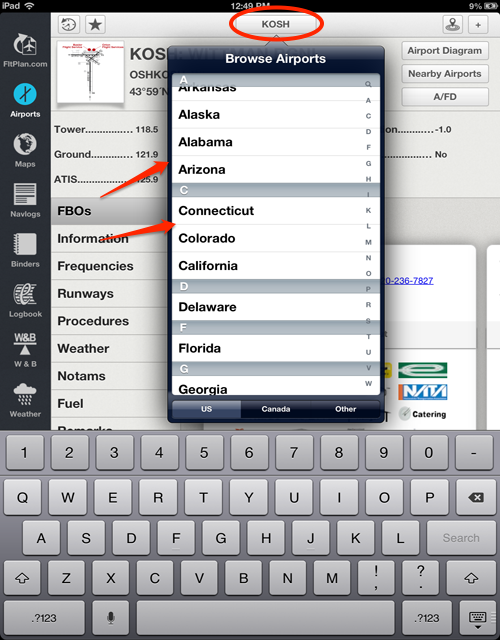
displaying the FBOs Information for your selected airport. To change airports tap the top center button.
A drop down view will appear allowing you to select a different airport.
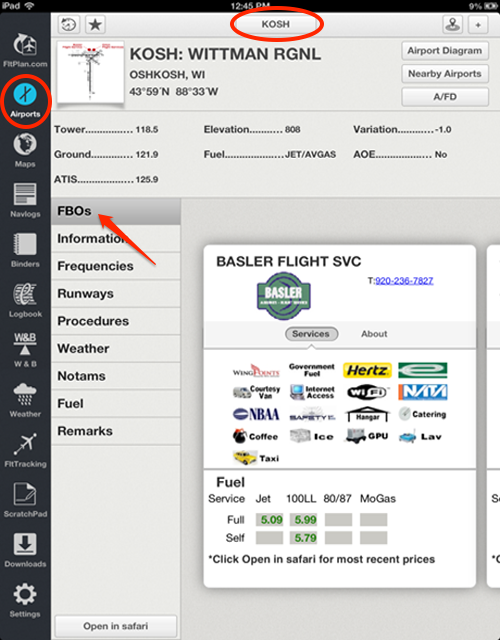
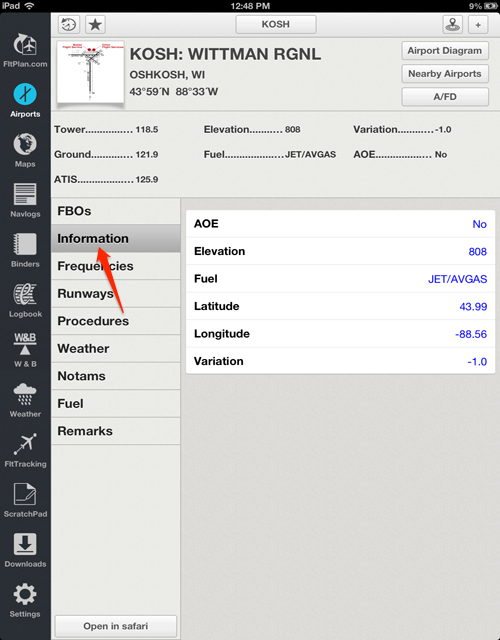
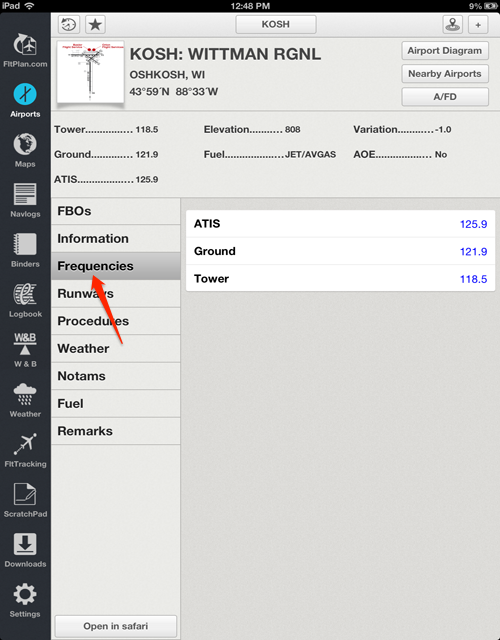
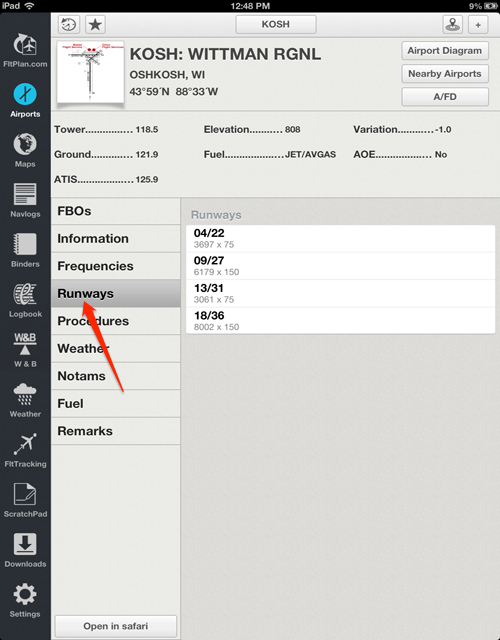
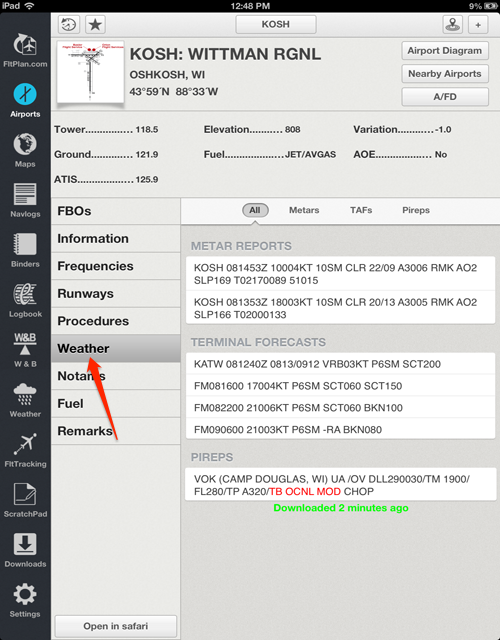
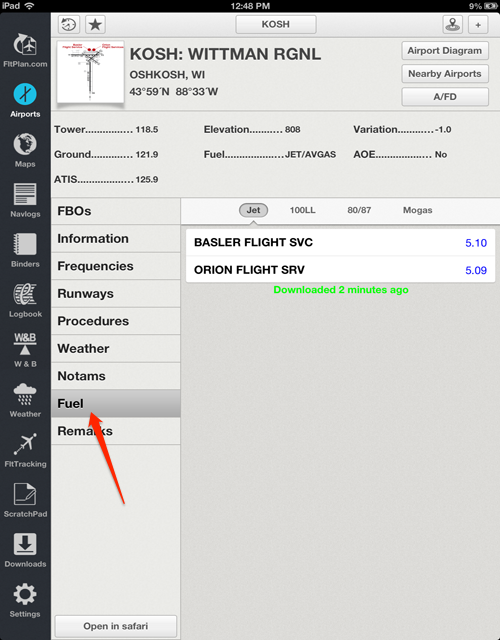
As you can see to the left of the screen there are many different information options about your selected airport.
Including, FBOs, Information, Frequencies, Runways, Procedures, Weather, Notams, Fuel, and Remarks.

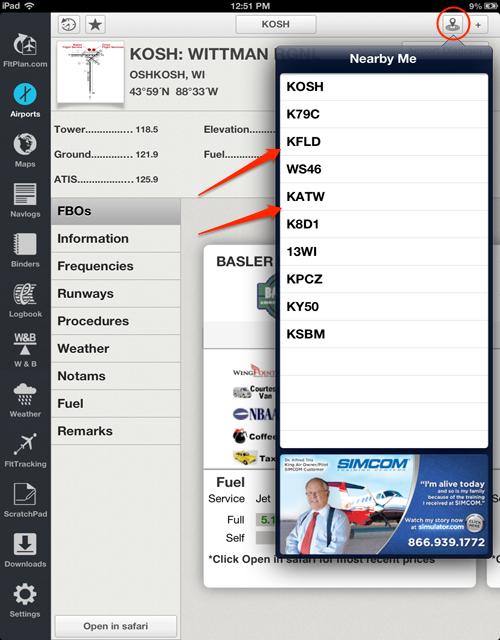
The button in the top right corner next to the plus button is Nearby Me. This displaying all the airports
that are near your location.
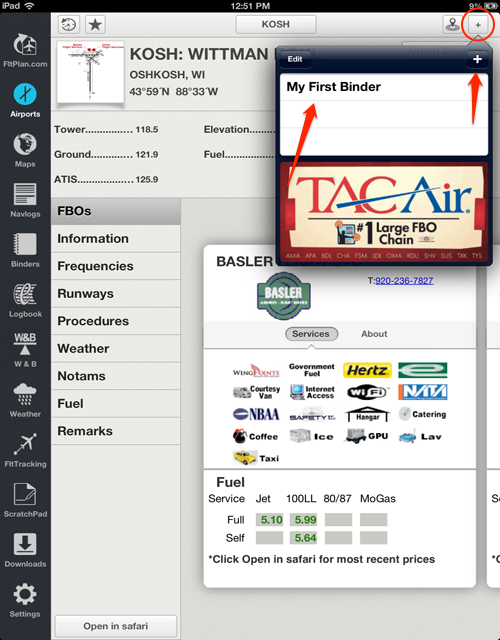
The plus button in the top right corner of the screen opens a drop down view that lets you add the airport to your binder.
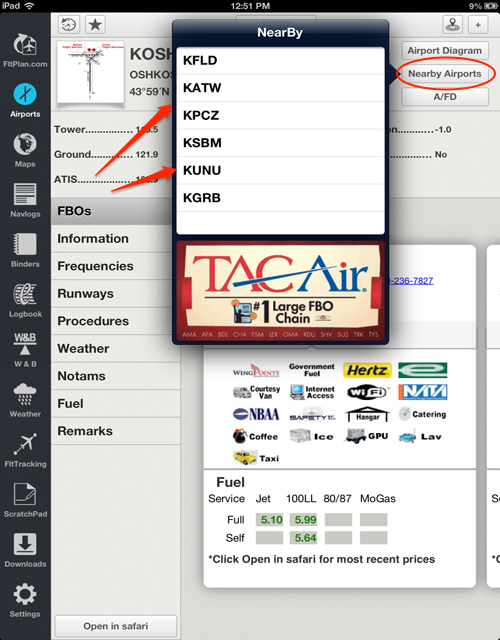
To the bottom of the Nearby Me and Plus buttons are the Airport Diagram, Nearby Airports, and A/FD buttons.
Airport Diagram opens the Approach Plate for your selected airport, Nearby Airports displays all the airports
close to your selected airport and A/FD opens the A/FD for your selected airport.
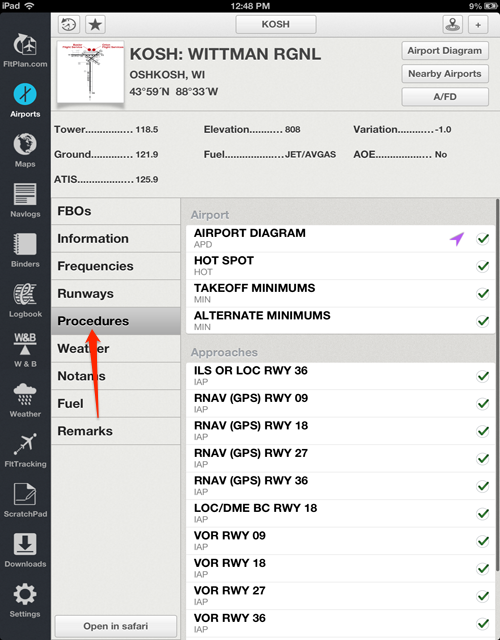
One of the new features of FltPlan Go are the Geo-Referenced Approach Charts. Tap the Procedures tab which displays
the Airport, Approaches, Arrivals, and Departures of your selected Airport. The purple triangle means the Geo-Referencing
is on and working properly.
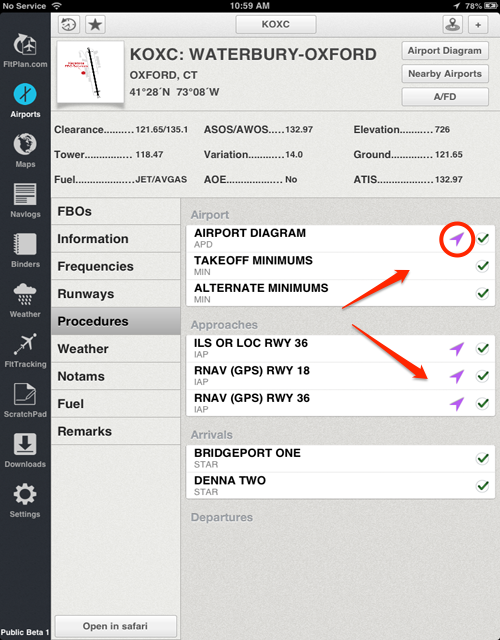
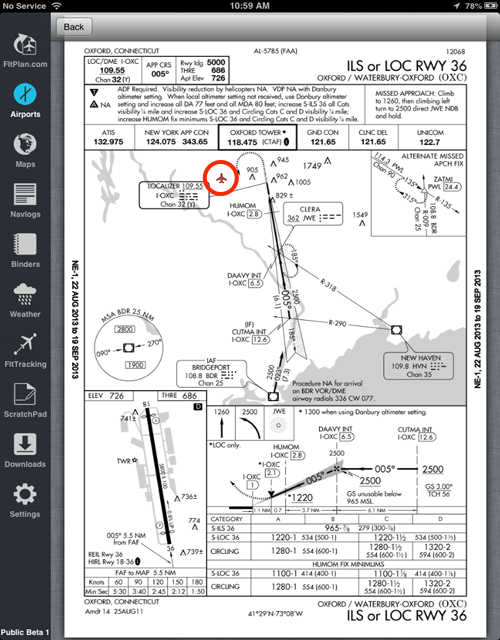
When you open the Approaches the small red airplane icon is displayed at your location.
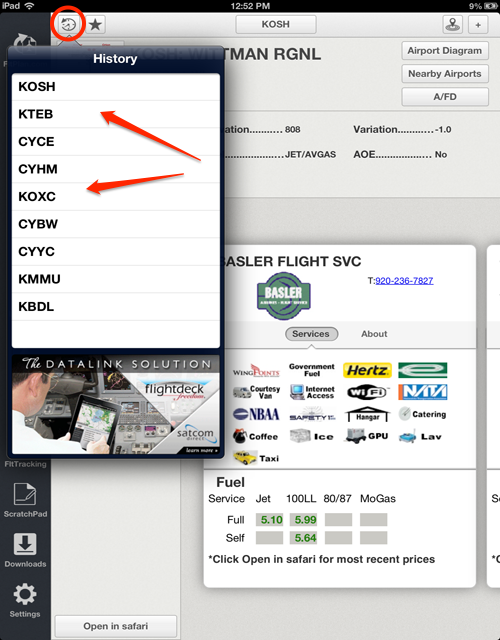
The History button is the top left corner which displays the airports you've viewed in the past.
That concludes the Airports tutorial, select one of the buttons above to view another tutorial.
|